Contents
Support
Need help?
Please include your Apple TV model and the version number shown in “About Clock Gallery”.
Connecting your calendar
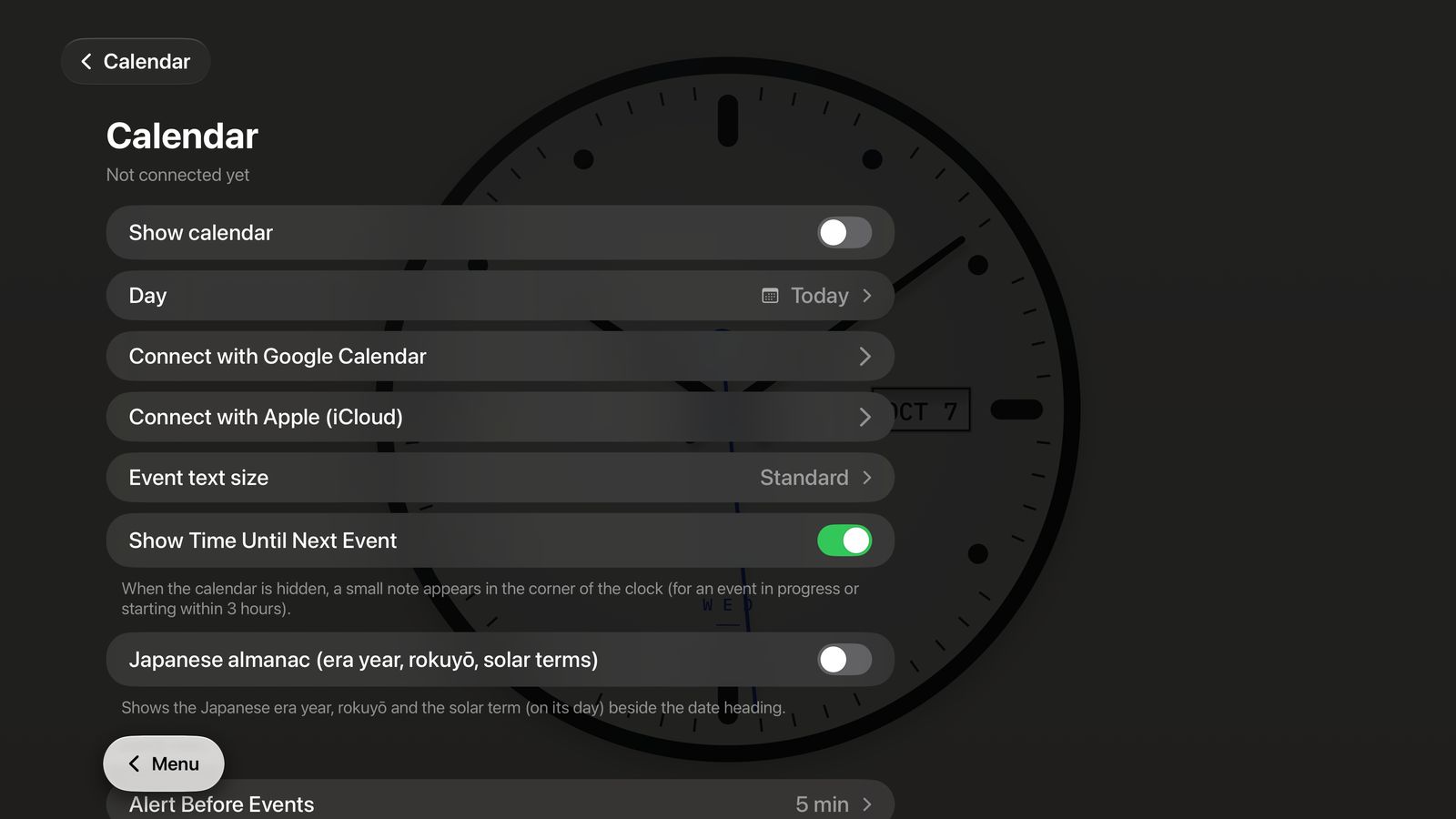
Choose Calendar in the menu, then connect Google Calendar or Apple (iCloud) Calendar. Clock Gallery only reads your events, and keeps them on your Apple TV.
Google Calendar
Scan a QR code with your phone
- In the menu, choose Calendar → Connect with Google Calendar (a QR code also appears in the calendar area beside the clock).
- Scan the QR code with your phone’s camera.
- Check that the number on your phone matches the one on your TV, then tap “Yes”.
- Sign in with Google and allow access, ticking both “calendar list” and “events”.
- Back on the TV, choose which calendars to show.
Apple (iCloud) Calendar
Use an app-specific password
- On your iPhone or computer, open account.apple.com and sign in.
- Go to Sign-In and Security → App-Specific Passwords and create a new one (name it “Clock Gallery”, for example).
- On Apple TV, choose Calendar → Connect with Apple (iCloud), enter your Apple Account email and the app-specific password, then choose Connect.
Creating an app-specific password requires two-factor authentication for your Apple Account. Do not enter your regular Apple Account password.
FAQ
I can’t scan the QR code
Open pair.clockgallery.app in a browser on your phone or computer and enter the 6-digit number shown on your TV. The number changes every 10 minutes.
Sign-in fails inside LINE, Instagram, etc.
Google may block sign-in in in-app browsers. Use the menu to open the page in Safari (or Chrome on Android).
“Calendar access was not granted”
This appears if a checkbox was left unticked on the Google screen. Tap “Sign in again” and tick both boxes.
My work or school Google account won’t connect
Your Google Workspace administrator may block third-party apps. Ask them to:
For administrators: In the Google Admin console, go to Security → Access and data control → API controls → App access control → Manage Third-Party App Access, and set Clock Gallery to “Trusted” or “Limited (allow access to Google Calendar)”. Clock Gallery requests read-only access to the calendar list and events.
OAuth client ID: 1060584872748-9cpcbg07itsf3ljo6qq2vluamt13510t.apps.googleusercontent.com
My iCloud app-specific password isn’t accepted
Check your Apple Account email and the app-specific password you created at account.apple.com (in the form xxxx-xxxx-xxxx-xxxx). Your regular Apple Account password won’t work.
If it worked before but stopped, the app-specific password was revoked or changed. Create a new one and connect again from Calendar in the menu.
Events are out of date
Events are refreshed about every 15 minutes. To refresh now, choose Calendar → Update now. If events are more than 2 hours old, the last update time appears at the bottom right of the calendar.
“Calendar access has expired”
Access ends if it was revoked in Google, unused for 6 months, or restricted by an administrator. Please connect again.
How do I disconnect?
Choose Calendar → Disconnect. This deletes events stored on the TV, and for Google also revokes the permission. You can also revoke access from Third-party access in your Google Account.
For iCloud, disconnecting does not delete the app-specific password, so revoke it at account.apple.com when you no longer need it.
Can I use Outlook?
Google Calendar and Apple (iCloud) Calendar are supported now. Outlook is in preparation.
How do I turn off seconds or sound?
On the clock selection screen, choose Edit to turn seconds, date, day of week and sound on or off. Each clock remembers its own settings.
Are there ads?
No. There are no ads on the clocks or in the menus.
How do I restore a purchase?
Choose Purchase → Restore Purchase in the menu. Purchases made with the same Apple Account are restored.